
All Nations Church
Notion Onboarding


Your new digital workspace — one place for everything your team creates, plans, and needs to know.
 What is Notion
→
What is Notion
→
 The Building Blocks
→
The Building Blocks
→
 Why We're Moving
→
Why We're Moving
→
 Working Together
→
Working Together
→
 Your Department
→
Your Department
→
Notion is like a digital notebook crossed with Google Docs, Trello, and a planner — all living in one app, beautifully connected.
You can use it to:
 Write notes & documents
 Create to-do lists
 Plan projects with teams
 Store information & files
 Organise everything in one place
 Click any card above to learn more about how that feature works
Notion replaces all of these:


Why teams love it:
Everything is customisable — build it the way your team actually works, not how a tool forces you to.
Works for everyone — individuals, small teams, or whole organisations all in one workspace.
Keeps everything connected — link a meeting note to a project, a project to a budget, a budget to a task.
Easy to collaborate — your whole team sees the same thing, in real time, no version confusion.

No more important updates buried in WhatsApp or email threads that disappear.

Clear ownership and deadlines. Everyone knows what they're responsible for.
Different departments can share information and work on the same page simultaneously.

New staff and volunteers can find what they need without asking five people.
Processes, policies, history, and resources — all in one searchable place.

Everyone is working from the same up-to-date information at the same time.

Our goal: spend less time searching for information and more time serving people.
 Docs spread across Google Drive, email, WhatsApp, and desktops
 Important messages and decisions get buried and forgotten
 Duplicate files everywhere — no one knows which is the latest version
 Hard to track who is doing what, and when things are due
 New staff have to ask multiple people to find basic information
 One searchable workspace — everything is findable in seconds
 Shared visibility across all teams — everyone sees the same thing
 One latest version of everything, always up to date
 Clear ownership and tracking — tasks are assigned and visible
 New staff can self-serve — find answers without interrupting others
Types of blocks:
 Text / Heading
Aa
Text / Heading
Aa
 Image / Media
/img
Image / Media
/img
 Checklist / To-do
[ ]
Checklist / To-do
[ ]
 Table / Database
/db
Table / Database
/db
 Video / Embed
/vid
Video / Embed
/vid
 Sunday Service — 25 May 2026
 Worship slides.jpg
 Sound check complete · Prayer team briefed
 Team Rota Database
 Pre-service training video
 Church Hub
 Events Calendar
 Announcements
 Staff Policies
 Production Team
 Video marketing plan
 Equipment Tracker
 Camera inventory
 Comms Team
 Content Calendar
 Events Team
 Upcoming Event
Pages can hold anything:
Assign work to team members with deadlines and priority labels.

Attach photos, PDFs, videos — everything lives alongside the content it belongs to.
Structured information like rotas, event plans, and contacts — all sortable and filterable.
Pages can contain other pages — like folders within folders. One giant, connected, searchable notebook for everything in church life.


| Event | Date | Owner | Status |
|---|---|---|---|
| Sunday Service | 25 May | Endo | Done |
| Youth Night | 28 May | Josh | In progress |
| Staff Day | 1 Jun | Ify | Planned |
| Community BBQ | 8 Jun | Andrew | Planned |




Press ⌘K (Mac) or Ctrl+K (Windows) from anywhere in Notion.

Search across all teamspaces, pages, and databases at once.

Recently visited pages appear first so you can pick up right where you left off.

Notion AI can answer questions using your workspace content — like a knowledgeable colleague.
Type @ followed by a colleague's name to tag them anywhere in Notion. They get an instant notification — no separate message needed.
Highlight any text or click any block to leave a comment. Have threaded discussions right next to the content — context stays together.

Multiple people can edit the same page at the same time. You'll see each other's cursors — and every change is saved automatically.

All your mentions, comments, and task assignments land in your Notion inbox. One place to see everything that needs your attention.

A shared central home — calendar, announcements, policies, and church-wide information accessible to everyone.

Every team gets their own space — Production, Events, HR, Finance — structured for how each department actually works.

A growing library of training materials, processes, SOPs, and guides so knowledge lives in the organisation — not just in people's heads.

Every event, campaign, and initiative has a home — tasks assigned, deadlines set, progress visible to all involved.

Decisions, documents, and discussions move out of group chats and into a structured, searchable workspace.

Notion scales as All Nations grows. New departments, new roles, new processes — they all fit inside the same workspace.




Same system, everyone working from one source of truth — no more "can you resend that file?" or "which version is this?"
Understand what Notion is, how to navigate it, and where your team space lives.
Start using Notion for one thing: a task list, a running doc, or your team's calendar.
Your space starts taking shape — databases, views, and templates tailored to your role.
The system evolves with All Nations. New features, new workflows — one step at a time.
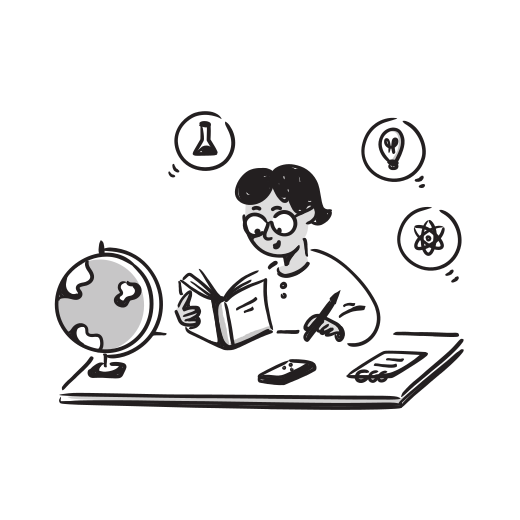
Ask questions anytime. There are no dumb questions in Notion onboarding. Everyone starts somewhere — and we're all starting together.
Check your email for an invite from Notion. Click it, create your account, and you're in.

Have a look around. Click through the pages. You won't break anything — promise.

Free short videos for beginners. Visit academy.notion.com and do the "Getting Started" course.
Top tip: Whenever you're in Notion and want to add something new — type / and a menu appears showing every block type you can insert. It's the single most useful shortcut to know.
 Movement Team
Explore →
Movement Team
Explore →
 Naomi
Communications Lead
Explore →
Naomi
Communications Lead
Explore →
 Alisha
Website & Marketing
Explore →
Alisha
Website & Marketing
Explore →
 Sarah
Facilities
Explore →
Sarah
Facilities
Explore →
 Ify
Events
Explore →
Ify
Events
Explore →
 Cassy
HR
Explore →
Cassy
HR
Explore →
 Susie
Learning & Development
Explore →
Susie
Learning & Development
Explore →
 Josh
Generations
Explore →
Josh
Generations
Explore →
 Ify
Finance
Explore →
Ify
Finance
Explore →
 Andrew
Hub Pastor
Explore →
Andrew
Hub Pastor
Explore →
Each page opens with tailored examples, templates, and ideas for how Notion can support your work.
Notion is an all-in-one workspace — a place where you can write, plan, collaborate, and organise. It was founded in 2016 and has grown to be used by millions of teams worldwide, from small charities to Fortune 500 companies.
What makes Notion different from other tools is its flexibility. Rather than being a fixed "task app" or "document tool", Notion lets you build exactly the workspace your team needs — using simple building blocks.
For All Nations, it will be the single place where our work, knowledge, and collaboration lives — rather than scattered across WhatsApp, email, Google Drive, and paper.
Notion works on browser, desktop app (Mac/Windows), and mobile (iOS/Android) — so you can access it anywhere.
Tips for getting the most out of today📱 This presentation works on phones and tablets too — so feel free to explore it later on any device.
Notion is built around a deceptively simple idea: everything is a page, and every page is built from blocks. That's it. But from that simple foundation, you can build almost anything.
The best Notion workspaces grow gradually. Don't try to build everything on day one — start with one use case and expand from there.
Notion AI is built directly into the workspace — there's nothing extra to install. As of 2026, it's become quite powerful and genuinely useful for everyday tasks.
Notion AI learns from your workspace content — so the more your team adds to Notion, the more useful it becomes as an AI assistant.
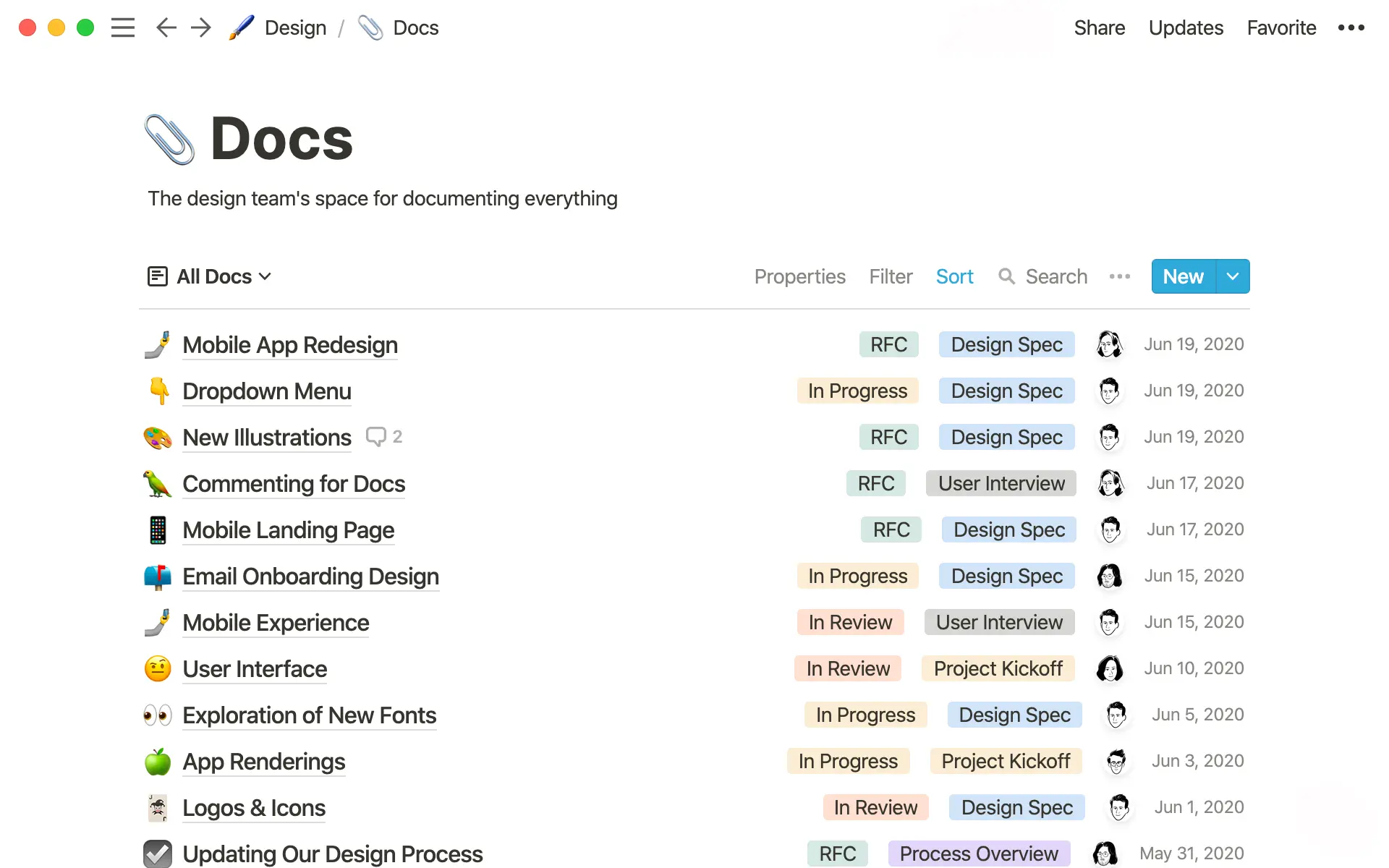
In Notion, writing a document feels like a cross between Google Docs and a website builder. You can format text, add headings, embed images, include callout boxes, and add tables — all in one flowing document.
Documents in Notion are always live — no saving required. And unlike an email attachment, a Notion page can be updated by anyone with access, so everyone always has the latest version.
Great for: meeting notes, sermon prep, staff communications, team briefings, policy documents.
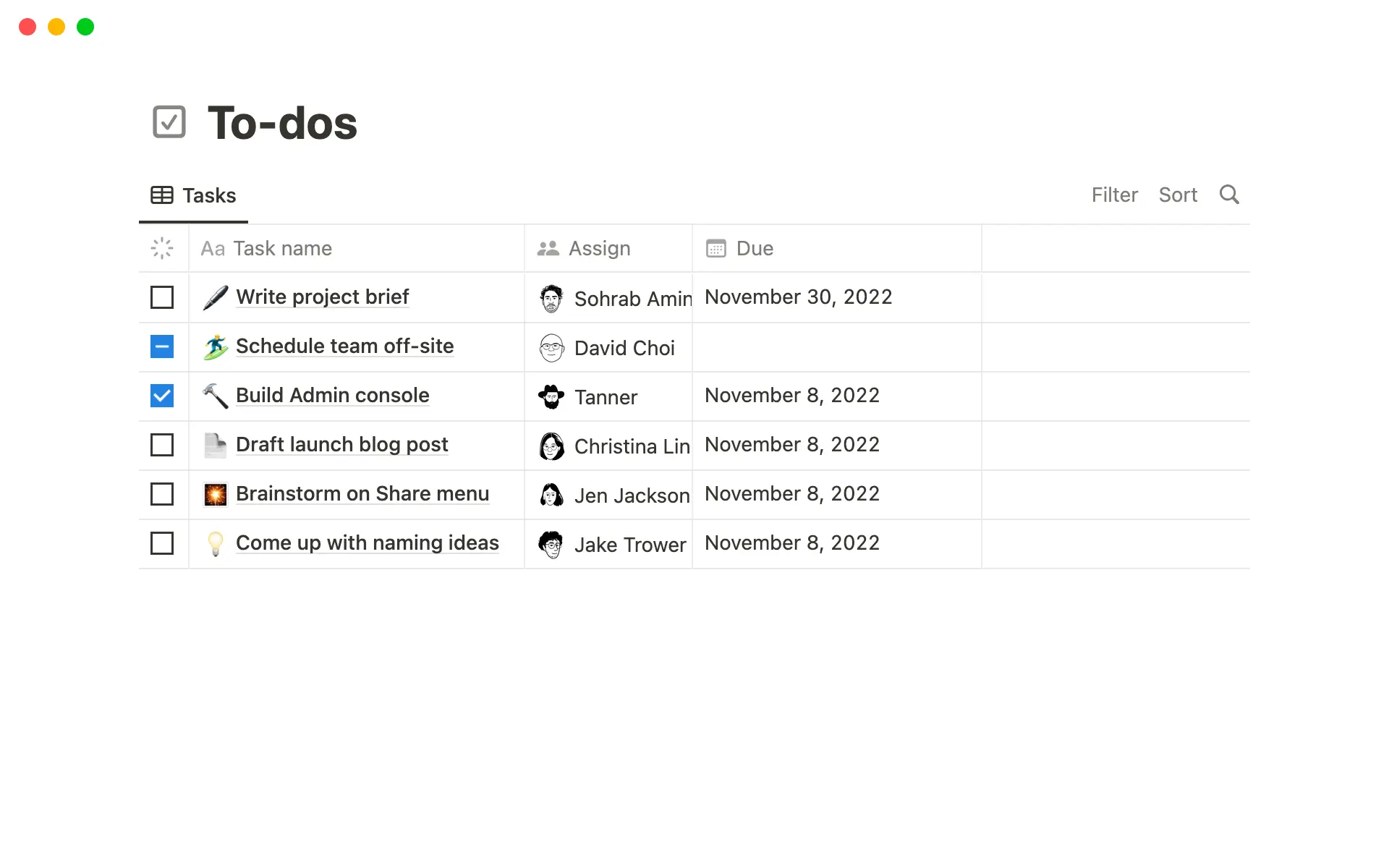
Notion's task and to-do features go far beyond a simple checklist. You can assign tasks to specific people, set due dates, add priority labels, and view everything as a table, board, or calendar.
When you're assigned a task, you get notified. When something is complete, it's ticked off. Simple — but powerful when everyone uses the same system.
Great for: weekly personal task lists, project task tracking, service runsheets, and any recurring checklist your team does.
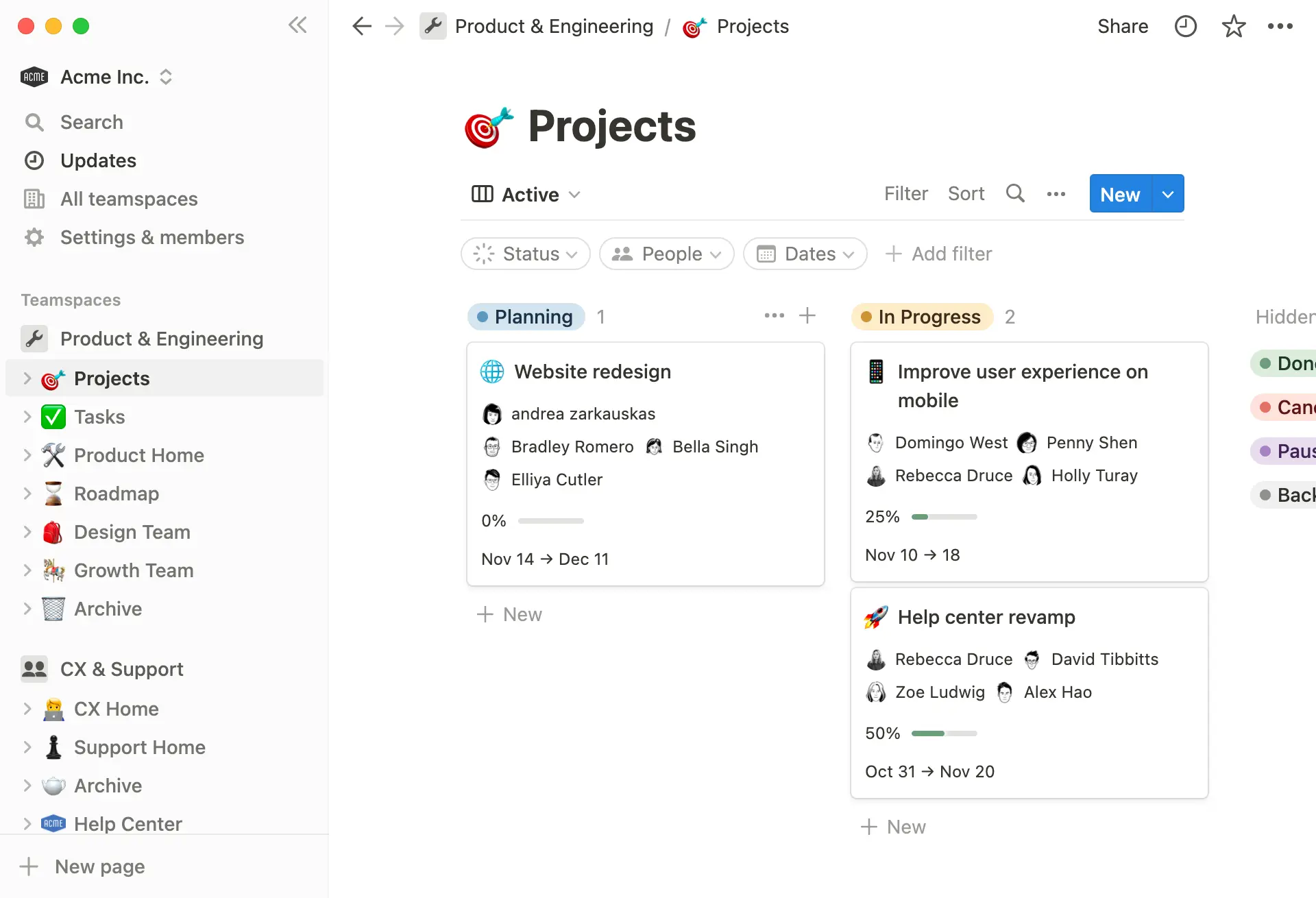
A Notion project page can contain everything related to that project: the brief, the task list, the timeline, meeting notes, links to files, and the final debrief. All in one place.
Team members can comment on specific tasks, update statuses, and see the full picture — reducing the need for endless update meetings.
Great for: event planning, service preparation, campaigns, building projects, and any multi-step work involving more than one person.
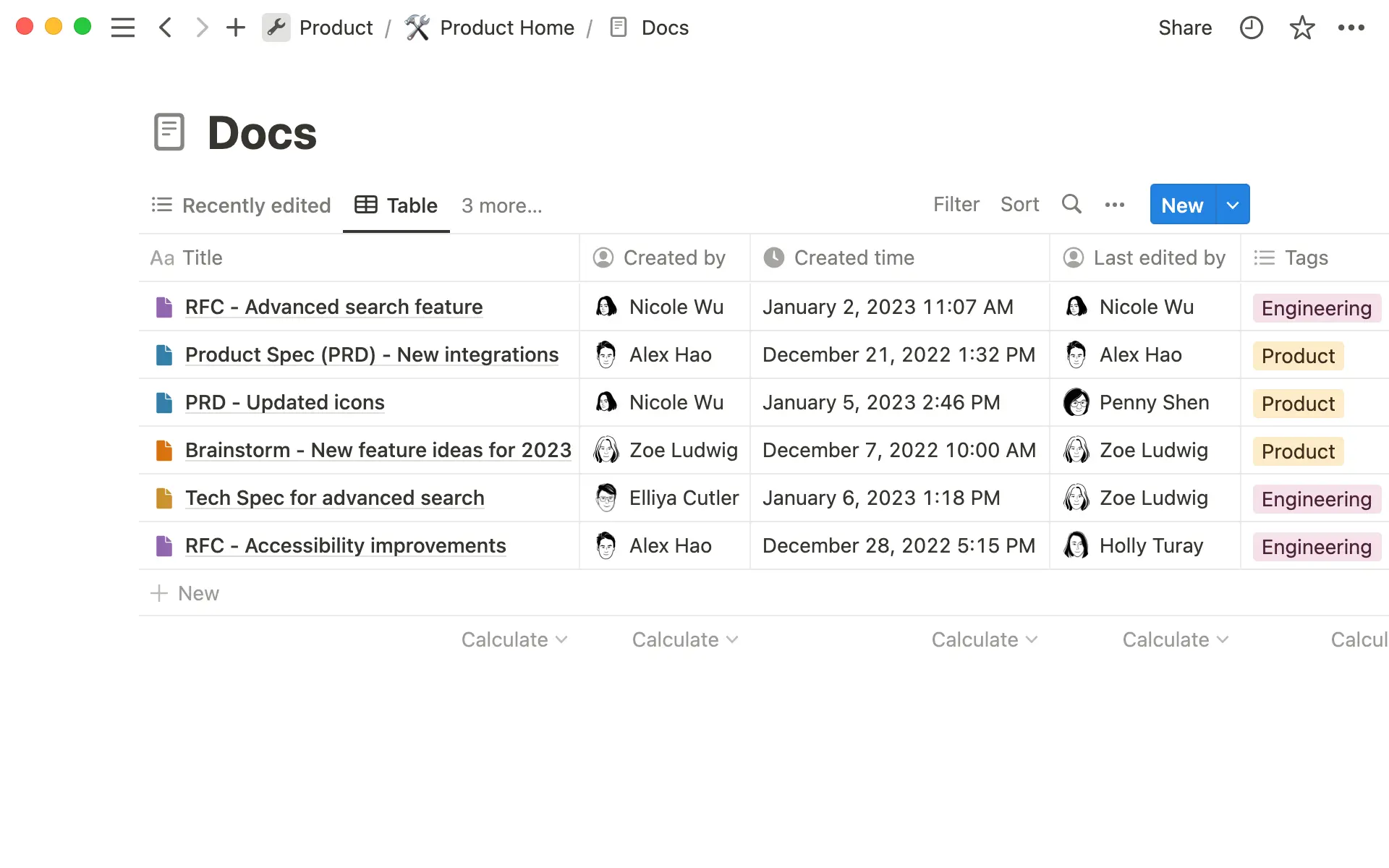
You can upload and attach files directly to Notion pages — PDFs, images, spreadsheets, Word docs. But more importantly, Notion keeps information organised so it's findable.
Rather than a folder of unlabelled files, a Notion database can include metadata — who created it, what event it's for, what its current status is — making everything searchable and filterable.
Think of Notion as where your important information lives, and Google Drive as where the raw files are stored. The two work brilliantly together.
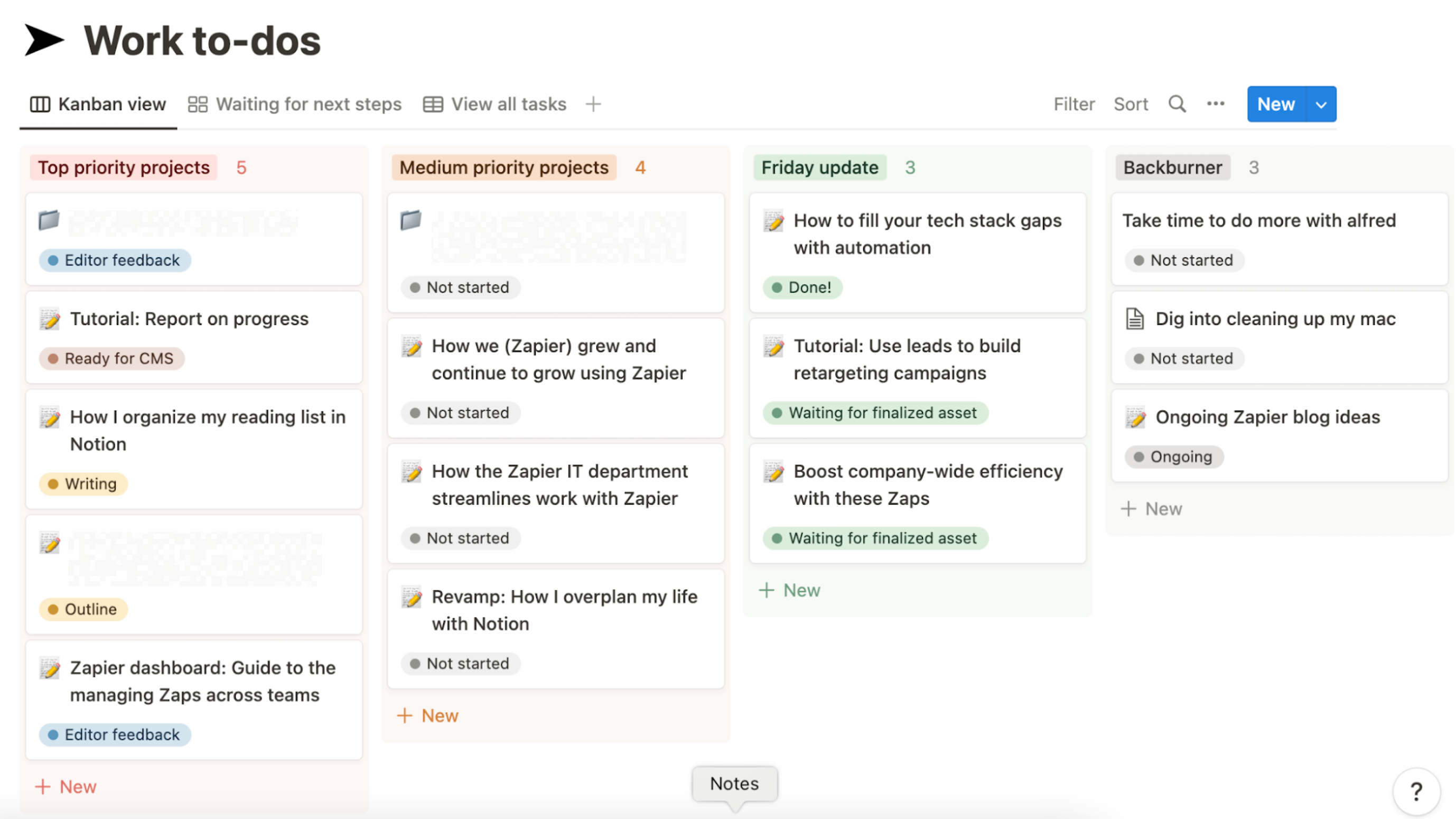
The real power of Notion is that everything is connected. A meeting note can link to a project. A project can link to a task list. A task list can link to a budget. All without jumping between apps.
Your Notion sidebar acts like a structured set of shelves — organised by team and topic — so anyone can navigate to what they need without knowing where things "are" in anyone else's system.
Once your Notion workspace is set up properly, the question "where did that document go?" mostly disappears.
Imagine your current physical desk — it has a notepad for jotting things down, a calendar pinned on the wall, a to-do list stuck to your monitor, a filing cabinet for documents, and a whiteboard for planning. Notion brings all of that into one digital surface.
The key difference from other tools like Microsoft Teams or Slack is that Notion is primarily about content — documents, databases, and pages — not just messages and conversations.
Notion and WhatsApp/Slack can coexist — use them for quick messages, use Notion for everything that needs to be findable later.
Notion as a Notebook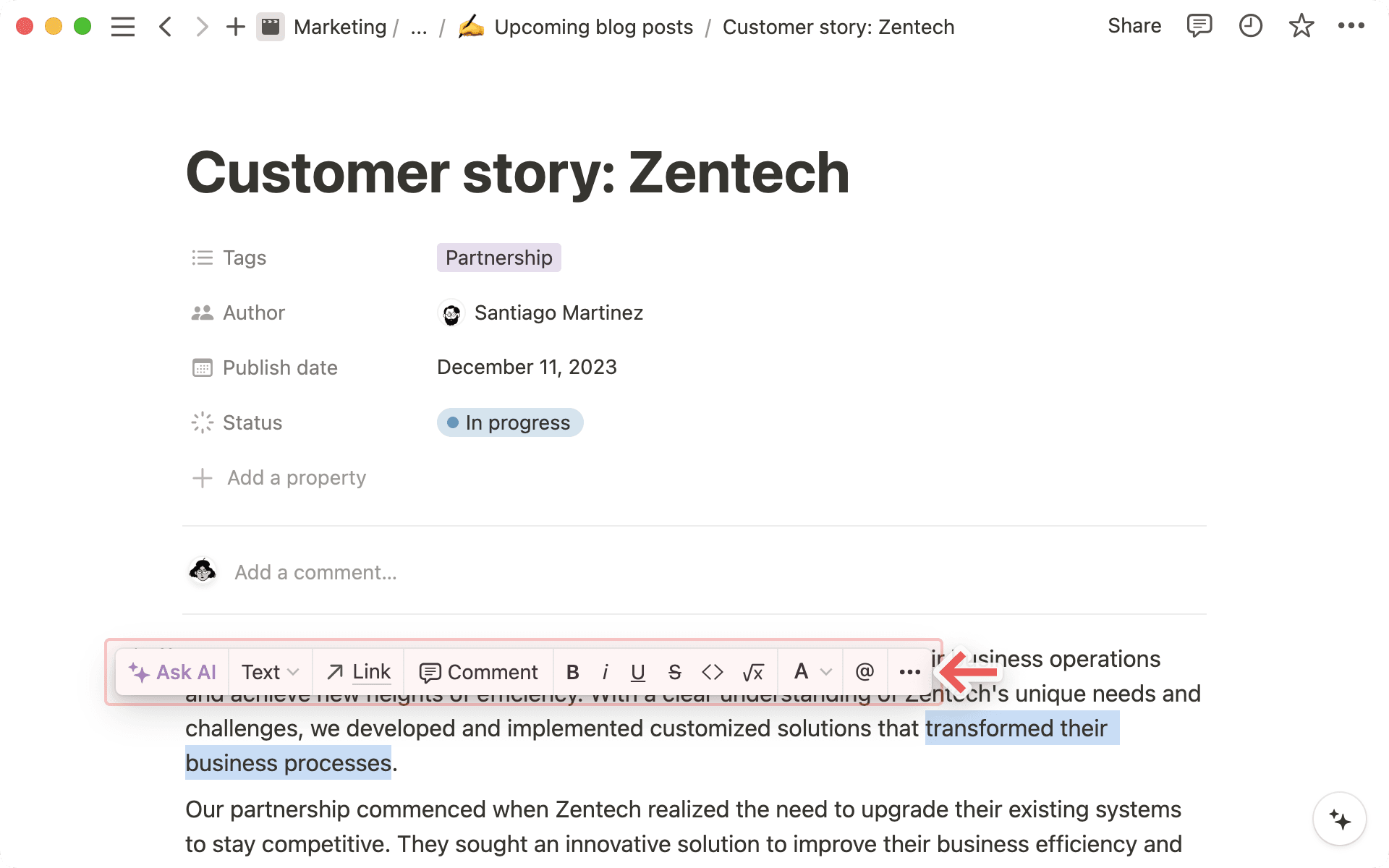
Meeting notes are one of the most common starting points in Notion. You can create a template for your regular meetings — agenda, attendees, discussion points, actions — and every meeting becomes a searchable, linked entry in a database.
Try creating a recurring "Weekly Team Meeting" template — same structure every week, automatically dated, easy to search back through.
Notion as a CalendarAny Notion database can be viewed as a calendar. Add a "date" property to your events database and switch to Calendar view — and you'll see everything laid out by date, with the ability to click through to each event's full details.
Notion calendars can be filtered too — so you can view only your department's events, or only events in a certain status.
Notion as a Task ManagerNotion's task management works through databases with properties like "Assignee", "Due Date", "Priority", and "Status". Unlike a basic to-do list, you can filter tasks to see only yours, or only overdue items, or only this week's priorities.
The Notion "My Tasks" view lets you see every task assigned to you across the entire workspace — from any department — in one place.
Notion as a Company WikiA wiki is a collection of linked documents that captures how your organisation works. In Notion, you can build one for All Nations — covering everything from how to set up a room for an event to what the procedure is when a volunteer doesn't show up.
Because it's searchable and linkable, it becomes the first place people go when they have a question — rather than interrupting a colleague.
A good wiki means institutional knowledge doesn't leave with a person when they move on. Everything important is documented.
Notion as a Project TrackerIn Notion, a project tracker is a database where each row is a project (or milestone), with columns for owner, deadline, status, and related tasks. Switch to Timeline view and you get a visual Gantt chart showing everything at once.
You can nest a task database inside a project database — so clicking on an event in your tracker opens that event's full task list. Everything connected.
Every growing organisation reaches a point where informal systems stop scaling. What works when there are 3 staff members creates chaos at 10. WhatsApp groups, email threads, and saved files on personal laptops are not systems — they're habits that hide information from everyone else.
Notion is how we build a system that works regardless of who's in the office, who's new, or who's been here for years. The information belongs to All Nations — not to any individual's inbox.
The goal isn't to add more work — it's to replace scattered, hard-to-find information with organised, accessible information. Once it's set up, it saves far more time than it costs.
The block concept is the most important thing to understand in Notion. Every single thing you add to a page — a line of text, an image, a checkbox, a table — is a block. And every block can be moved, duplicated, nested inside another block, or deleted independently.
Think of it like LEGO. Each brick (block) is a simple piece. But you can combine them into almost anything — a simple note, a complex project tracker, a staff handbook. The same basic pieces, infinitely combinable.
Anywhere in Notion, pressing / (forward slash) opens a menu of every block type you can insert. This is the single most useful thing to know on day one.
There are over 60 block types in Notion — but you'll probably use about 8 regularly. Don't worry about the rest until you need them.
In Notion, a "page" is like a blank canvas — but it can hold anything. A page isn't just a document. It can be a database, a project, a task list, a template, or a hub that contains all of the above.
Pages can contain other pages (like a folder contains files), which is how you build structure. Your department space is a page, and inside it are more pages — one for each project, one for your team rota, one for your processes.
The search bar (⌘K) searches across all pages in your workspace. Once you build the habit of adding things to Notion, finding them is almost instant.
A database in Notion is a structured collection of pages — each row is its own page with properties attached to it (like a date, a status, a person, or a tag). That structure is what makes the data so flexible.
The magic is that one database can look completely different depending on what you need in that moment. Need to plan by date? Switch to Calendar. Need to see what's stuck? Switch to Board. Need a full overview? Table. Same data, different angle — every time.
You don't need to build databases yourself straight away. The ones in your team space are already set up — you just need to start using them.
"One source of truth" means there's one definitive place where information lives — not ten different versions in ten different inboxes. When someone updates the Sunday runsheet in Notion, everyone sees the update. No more "which version did you send?" conversations.
For a church with multiple departments, events, and volunteers all needing to coordinate — this is transformative. The sound team, the hosting team, the worship team, and the pastoral team can all work from the same page — literally.
Notion pages are live documents. There's no "send" button, no email thread, no version number. There's just the page — always up to date.
Imagine a database of your church events. The data is the same: each event has a name, date, owner, and status. But different people need to see that information differently.
One database. Four different views. No duplication, no inconsistency. Everyone sees what they need.
You can add as many views as you like to any database. Creating a new view doesn't change the underlying data — just how it's displayed.
Notion's search is one of its most powerful features — and most underused by beginners. Press ⌘K on Mac, Ctrl+K on Windows, and a search bar appears that searches everything in your workspace instantly.
It searches page titles, content inside pages, database entries, and even comments. As your Notion workspace grows, this becomes more and more valuable — because well-organised information is only useful if you can find it.
The more consistently your team names things in Notion, the better search works. Agree on naming conventions early — it pays off.
Notion is designed for teams — not just individuals. Every feature is built with collaboration in mind: comments thread contextually, mentions route notifications intelligently, and page history lets you see exactly who changed what and when.
Page history is available on all plans — you can always go back and see what a page looked like last week, and restore it if needed.
The workspace we're building in Notion is meant to grow with All Nations. As the church grows, as teams expand, as new ministries emerge — Notion scales to hold it all. New departments get new teamspaces. New processes get new pages. New staff find everything they need without asking.
The end goal is a fully self-documented organisation — where the "how we do things" knowledge isn't locked inside any individual's head, but lives in Notion for everyone to access.
The best sign of a healthy Notion workspace: when new volunteers can answer most of their own questions by searching — without needing to interrupt anyone.
One of the most common mistakes with Notion is trying to build the perfect system from day one. It almost always leads to an over-engineered, confusing workspace that nobody uses — and then abandonment.
The better approach: start with one thing, use it daily, and let the system grow naturally from real needs. The teams who get the most from Notion are the ones who started with a single page and let it evolve.
A simple Notion page you actually use is infinitely more valuable than a complex system you built once and never opened again.
Don't learn Notion in theory — learn it by doing. Open your workspace, create a page, and start adding things. You'll figure it out faster than any tutorial.
Questions? Ask Endo or anyone in the team who's already using it. We're all learning together.
Each department page is a personalised guide showing how Notion can be used specifically for that role. They include:
These pages open in a new tab so you can keep this presentation open alongside them.
Share the link to your department page with your team — it's a great conversation starter for how you want to use Notion together.